

Viewing Article
 | Jan 6 2011, 6:46 PM |

You can use a non-Sharedband router as a wireless access point and connect it to Sharedband. This article will describe the general steps that you will be required to complete.
Step 1
Using a web browser (such as Internet Explorer), login to the web configuration interface of your non-Sharedband router. You can connect to it by browsing its present IP address
Step 2
In the menu system, please locate “DHCP Server Settings”
Step 3
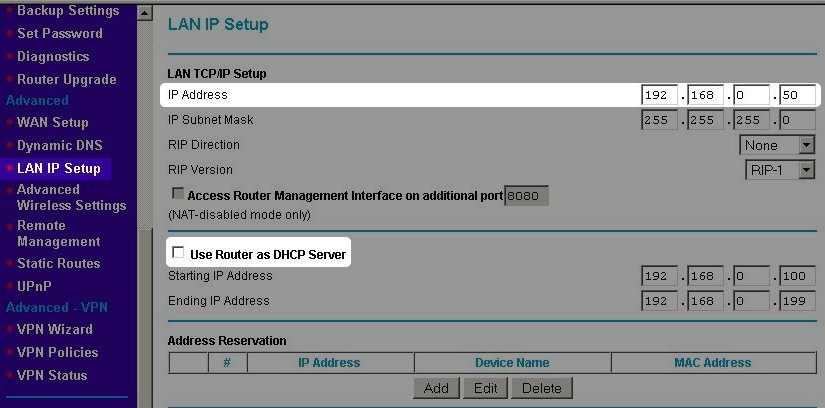
Disable the DHCP Server feature
Step 4
Sharedband normally uses the IP address 192.168.3.1. so change the IP address of your non-Sharedband router to avoid a conflict.
Locate the LAN IP Settings. Change your LAN IP address to 192.168.3.50 (this example will be subject to your internal network configuration)
If you are unsure what IP address you need to use, please raise a support ticket
Ensure that each of these two changes are saved (not pictured).
You are now ready to connect your non-Sharedband Wireless router to Sharedband. Using a network cable, plug one end into your non-Sharedband router and the other end into any of the Sharedband routers or if you are using a switch, please plug straight into that instead.
DO NOT PLUG YOUR NON-SHAREDBAND ROUTER INTO THE PHONE LINE
If you have any problems, please raise a technical support ticket.