

Viewing Article
 | Jan 7 2011, 3:08 AM |

Sometimes security measures on the BT Business Hubs can interfere with Sharedband. Also, to enable the support team to further diagnose issues, it is a good idea to set your BT Business Hubs to use DMZplus mode.
Step 1
Physically connect your computer to the Sharedband router connected to the 3rd party/ISP router. Login to the web configuration interface of this router (by default this is 192.168.3.x (where x is the router number) so for router 1 it would be http://192.168.3.1). When prompted, the username is always admin and the case-sensitive password is by default either admin or Bonding123. Finally, please then click 'Status'
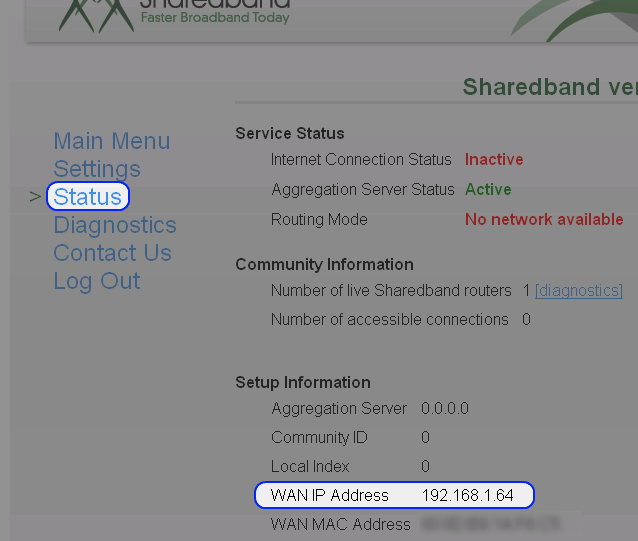
Please make a note of both the displayed WAN IP Address (192.168.1.64 in the example above) and WAN MAC Address.
Step 2
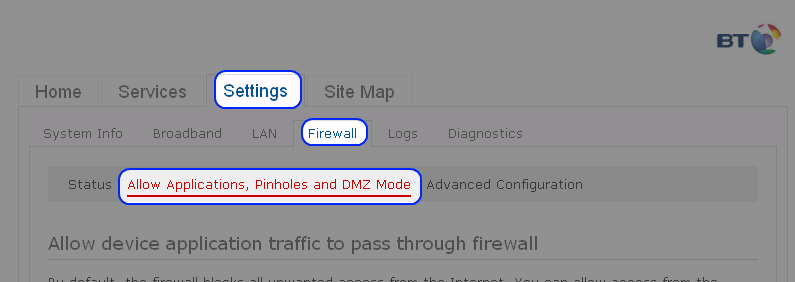
Connect a computer directly into the BT Business Hub (LAN port). Ensure your computer is obtaining its IP address using DHCP. Navigate to the BT Business Hub by visiting either http://home or http://192.168.1.254. Now click 'Settings' > 'Firewall' > 'Allow Applications, Pinholes and DMZ Mode'
Select the IP address from Step 1 (in the example below 192.168.1.64) and select 'Allow all applications (DMZplus mode)', then click Save. Once saved, detach your computer from the BT Business Hub and then restart both this device and then the attached Sharedband router.
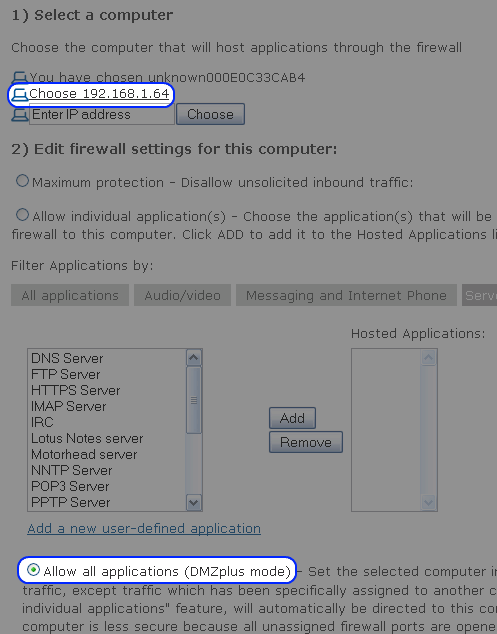
The device will ask you for the admin password, which is the serial number by default (which is located on the side of the BT Business Hub)
Step 3
Reconnect your computer to the Sharedband router and log on to our online NOC customer portal (the URL and logon user name/password are included on your welcome letter). Select ‘Status’ from the top menu then select ‘Status’ from the left-hand submenu. Click on the ‘Details’ icon next to the relevant router and copy the IP address listed next to 'Internet Connection IP'. Open a new tab in your internet browser, paste the copied IP address into the URL field and press enter.
If you are taken to the Sharedband router login page, this means that you have successfully changed your BT Business Hub into DMZ[plus] mode and nothing further is required. If any other screen is displayed, this indicates that implementing DMZ[plus] mode was unsuccessful and we would recommend that you seek assistance from BT.